related blog
%20(3).svg)
16
Top Tools for Team Photo Documentation
Guide to capturing, organizing, and sharing time-stamped jobsite photos, key features to evaluate, and steps to implement a team photo documentation system.

In industries like construction and field services, keeping organized photo records is critical for tracking progress, resolving disputes, and proving compliance. Without the right tools, photos can get lost in personal devices or scattered across emails, leading to delays, miscommunication, and costly mistakes.
Key Features to Look For:
- Automatic Metadata: Timestamps, GPS data, and user info for every photo.
- Centralized Cloud Storage: Secure, searchable archives accessible to all team members.
- Annotations & Notes: Mark up photos to highlight issues or add instructions.
- Real-Time Updates: Instantly share photos with managers and stakeholders.
- Offline Access: Capture and organize photos even in areas with poor connectivity.
- Integration Options: Link photos to tasks, reports, or communication tools.
CrewCam stands out as a specialized solution for contractors, offering features like unlimited cloud storage, project-based organization, and tools for collaboration. It simplifies workflows, reduces miscommunication, and protects teams from disputes or liability.
To implement a photo documentation tool effectively:
- Start with a pilot project to test functionality.
- Standardize workflows and naming conventions.
- Train teams with clear guidelines.
- Measure success with metrics like reduced disputes or faster photo retrieval.
Investing in the right tools ensures smoother projects, better communication, and reliable records for compliance, warranties, and audits.
Key Features of Team Photo Documentation Tools
Documentation and Organization Features
A reliable photo documentation system starts with automatic metadata capture. Every photo or video should include a timestamp with the exact date, time, and GPS coordinates at the moment it's taken. These details create a dependable record of when and where the work occurred. This is especially useful for verifying project compliance, justifying change orders, or defending against liability claims. When disputes arise, these automatic stamps provide consistent evidence teams can rely on.
Centralized cloud storage plays a critical role in keeping records secure and accessible. By storing all project documentation in one place, this system avoids clutter on individual devices and ensures records remain available - even if employees leave or devices are damaged. This setup supports seamless collaboration between office staff, field crews, and managers.
Organizing records by project simplifies retrieval. Teams can create dedicated folders for each project and use standardized tags - like trade type, building area, work phase, or task status - to categorize photos. Advanced search features make it easy to find what you need by filtering based on project name, keywords, tags, users, or date ranges. With everything neatly organized, teams can quickly access the visual evidence they need to answer questions or resolve issues.
Collaboration and Workflow Features
Photo annotations - such as arrows, highlights, and notes - are a powerful way to communicate directly on images. Field workers can mark up photos to point out issues, add measurements, or leave instructions. This eliminates the confusion that can arise from verbal descriptions or separate written notes, ensuring everyone knows exactly what needs attention.
Real-time synchronization keeps teams connected, no matter where they are. As soon as a crew member uploads photos, project managers, office staff, and other stakeholders are instantly updated. This immediate visibility speeds up decision-making and reduces the need for unnecessary site visits.
Tools that integrate checklists requiring photo documentation take accuracy to the next level. For example, inspection forms can mandate photos at each project stage, ensuring all visual records are tied to specific tasks. Role-based permissions and access controls are equally important, allowing companies to define who can view, upload, or manage documentation. This is especially helpful when multiple subcontractors, clients, or external partners are involved.
Sharing and Accessibility Options
Once photos are captured and organized, easy sharing ensures stakeholders stay informed. Tools that generate shareable links or galleries allow teams to bundle images, annotations, and notes for clients, inspectors, or insurance adjusters - without asking recipients to download apps or create accounts.
Integration with email and other business systems further streamlines workflows. For instance, teams can link photos directly to contracts, RFIs, or change orders, reducing duplicate work and keeping everything connected.
For teams working in areas with limited connectivity, offline access is essential. These tools allow users to capture, tag, and organize photos without an internet connection. Once reconnected, everything syncs automatically to the cloud. Support for multiple devices - including iOS, Android, tablets, and desktop browsers - ensures that every team member can access project galleries, no matter where or how they work.
CrewCam: A Complete Photo Documentation Solution
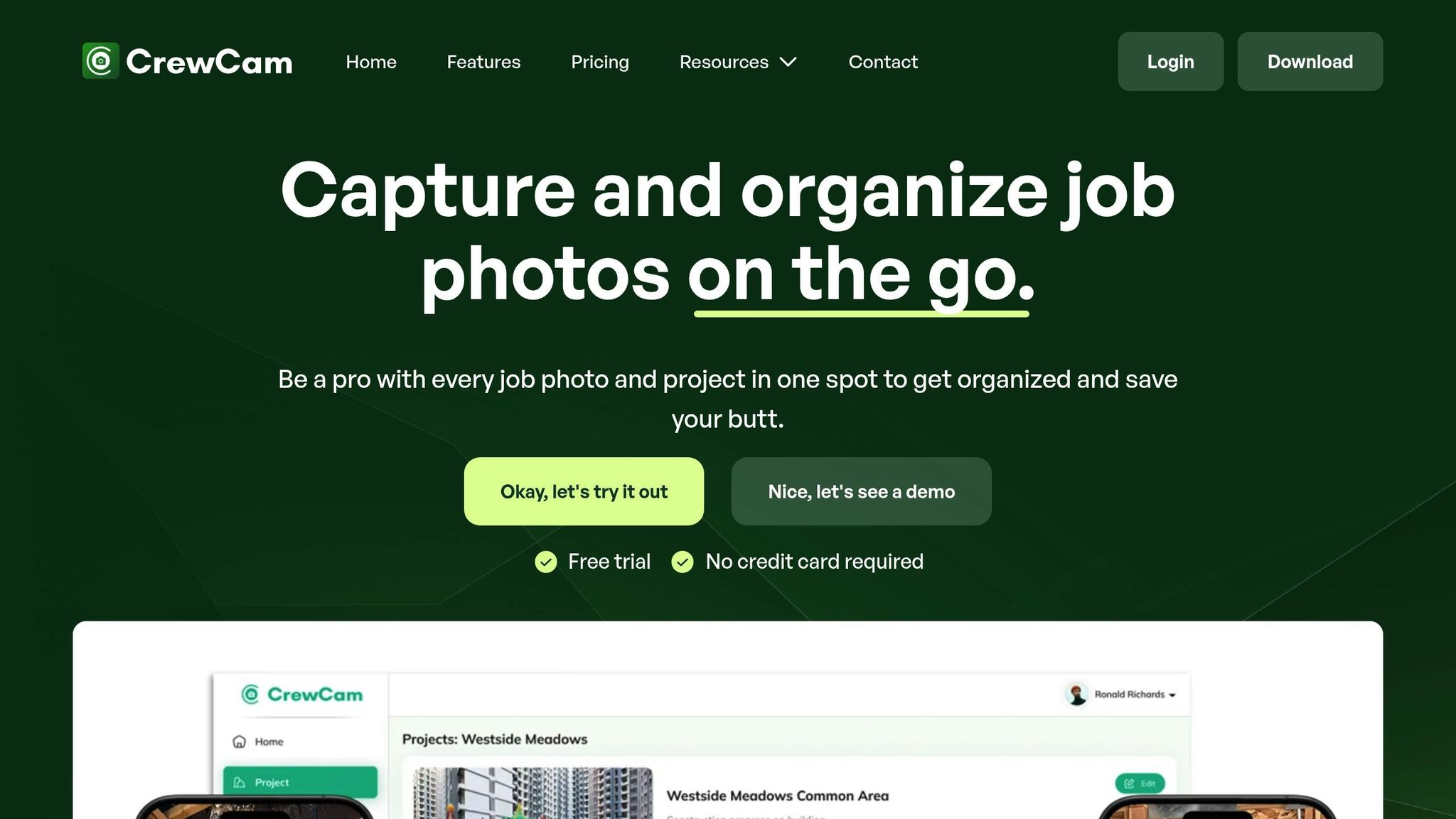
CrewCam is a visual documentation tool designed specifically for contractors, trades, and service businesses. It helps maintain a clear, reliable record of jobsite conditions, solving the common issues of disorganization and miscommunication that come with traditional photo collection methods.
"Let alone finding that one job photo I took that can prove what the jobsite was like before the plumber or electrician got there. Of course, my team's phones were the same. Their camera roll was clogged with work photos on their personal phone. One of them quits...and I have no way to get that job photo. The job documentation walks with them." - Porter, CrewCam Ring Leader
Photo and Video Management
CrewCam automatically tags every photo and video with the date, time, and GPS location, creating a reliable, auditable record. These automatic stamps provide consistent evidence for resolving disputes over project timelines or conditions.
With unlimited cloud storage, teams can document their work thoroughly without worrying about running out of phone storage or hitting plan limits. Content is organized by project, date, and location for easy access when needed.
Photos can be grouped by project and tagged by trade, phase, or specific issues - like "pre-demo", "electrical rough-in", or "punch list." A chronological feed allows teams to track progress over time, making it simple to retrieve images for client updates, subcontractor inquiries, or internal reviews.
For instance, a general contractor might use CrewCam to document framing and mechanical installations before drywall is added. If questions arise later or warranty work is required, the team can quickly locate those images - complete with timestamps and locations - to make informed decisions.
This robust photo management system works seamlessly with CrewCam’s collaboration features.
Team Collaboration Features
CrewCam goes beyond photo capture by enhancing team communication. Its live project feed provides real-time visual updates to office staff and managers. As soon as a crew member uploads photos, everyone with access can see the updates instantly. This visibility allows managers to identify issues early and make decisions without needing to visit the site, reducing delays and unnecessary trips.
Team invites and guest collaborator features make it easy to bring in subcontractors, clients, or inspectors for specific projects. Guest access ensures stakeholders can view relevant updates without downloading an app or creating an account.
On-photo annotations, notes, and comments turn images into actionable items. Field staff can mark problem areas directly on photos, add notes describing the issue, and tag the responsible trade or assignee. This eliminates confusion about what needs to be fixed, where, and by whom.
For example, an HVAC company can capture before-and-after photos with timestamps and locations to support service recommendations and confirm completed work. Technicians can annotate images to highlight specific equipment issues, add notes about repairs, and share the marked-up photos with estimators and office staff - all within CrewCam.
Additional Jobsite Features
CrewCam includes advanced features tailored to support every phase of a project.
Its enhanced offline mode and HD capture ensure high-quality documentation even in areas with poor connectivity. Once back online, everything syncs automatically, so no data is lost. High-resolution images provide the clarity needed for quality control or resolving warranty questions.
Project checklists help teams stay organized by requiring photo documentation at key milestones - such as pre-start, rough-in, and closeout. This ensures crews capture critical views before moving on, building a complete visual record that supports warranty claims, insurance needs, and compliance audits.
Sharable photo galleries allow teams to send curated updates to clients, insurers, or supervisors without exposing the entire project feed. Specific images can be bundled with annotations and notes and shared via a simple link.
For project managers and coordinators, a desktop login complements the mobile app. This lets them review large volumes of photos on a bigger screen, filter by project or tag, compile reports, and organize long-term archives. Field technicians can focus on capturing accurate visuals, while office staff handle documentation and reporting from their computers.
A restoration team, for example, might use CrewCam to document water damage and drying progress over several days. Field technicians can take timestamped photos of affected areas, annotate them with moisture readings, and add comments about equipment placement. Meanwhile, office staff can review the documentation on desktop, compile reports for insurance adjusters, and coordinate tasks - all using the same centralized visual record.
Studies show that miscommunication and poor documentation are major contributors to rework and profit loss in construction and field services. By providing time- and location-stamped visuals, CrewCam helps reduce these costs. It’s more than a convenience - CrewCam protects revenue, relationships, and reputations by making visual documentation an integral part of every project workflow.
Other Tool Categories That Support Photo Documentation
While a dedicated photo documentation platform like CrewCam excels at capturing, organizing, and sharing jobsite visuals, other tools play a critical role in storing images for the long haul and improving team coordination. Here's how cloud storage and communication tools complement dedicated photo documentation systems.
Cloud Storage for Long-Term Archiving
Once a project is completed, it’s crucial to have a reliable way to store photos for warranty claims, legal issues, or future reference. Platforms like Google Drive, Microsoft OneDrive, Dropbox, and Box provide scalable storage options, version history, access controls, and simple sharing through links or shared folders.
These tools are particularly useful for archiving across multiple projects and integrate seamlessly with office productivity software. A well-structured folder system allows for quick retrieval of archived images when warranty or legal issues arise.
Many teams adopt a two-tier system: a photo documentation tool like CrewCam manages daily capture and organization, while a cloud storage platform handles long-term archiving. This setup ensures that active workspaces remain organized and that photos are accessible even if subscriptions end or team members leave.
Emerging AI search features can further enhance retrieval by recognizing objects in photos - like "ladder", "PPE", or "electrical panel" - which is especially helpful for contractors managing hundreds of projects over several years.
When selecting a cloud storage solution, prioritize features like mobile app support, fast syncing over LTE or 5G, and strong access controls. Since many jobsites in the U.S. have unreliable Wi-Fi, crews need to upload photos on the go. Proper access controls also help safeguard sensitive client and project data.
To maintain consistency, establish a standard folder structure. For example, organize files by client, job address, and date. Export final reports and images from your photo documentation tool into these folders to create a clear, auditable trail.
While cloud storage ensures long-term accessibility, communication tools help transform visual records into actionable insights.
Communication and Task Management Systems
Photos become even more effective when paired with tools that drive collaboration and accountability. Slack, Microsoft Teams, Asana, Trello, and Monday.com act as the "workflow layer" around photo documentation, enabling teams to attach images to messages, tasks, and project boards for better coordination.
Chat platforms like Slack and Microsoft Teams allow teams to share jobsite photos in real-time, cutting through the delays of email chains. By posting visuals in dedicated project channels, teams can quickly provide context, receive instructions, and track project history. For example, if a crew encounters an unexpected plumbing issue, they can snap a photo, post it in Slack, and tag the plumber. The project manager can respond within minutes, schedule a fix, and keep the process moving - no phone calls or site visits required.
Task management tools like Asana, Trello, and Monday.com help tie photos to specific tasks and timelines. For instance, teams can configure these platforms to require photo attachments for tasks like punch list items or inspections before marking them complete. This ensures accountability and provides managers with visual confirmation that work has been done.
Many modern construction platforms integrate chat, task tracking, and file storage into a single system. This means photos can automatically link to RFIs, punch lists, inspections, and daily reports, reducing miscommunication and rework. Some platforms even combine photo documentation with weather and workforce data to create detailed daily reports, which can be invaluable for resolving disputes or warranty claims down the line.
| Tool Category | Role in Photo Documentation | Typical Use in Workflows |
|---|---|---|
| Cloud storage (Drive, OneDrive, Dropbox, Box) | Archiving, backup, and sharing of photo libraries | Store completed project folders; share links with clients, legal teams, or insurers |
| Communication tools (Slack, Teams) | Real-time discussions around photos | Share jobsite images in project channels for quick decisions and approvals |
| Task tools (Asana, Trello, Monday.com) | Linking photos to tasks and checklists | Require photo proof before closing tasks; track responsibilities and timelines |
The key is seamless integration. CrewCam works effortlessly with cloud storage and task management systems, ensuring that photos automatically flow into the appropriate folders, conversations, and action items - eliminating manual uploads and duplicate data entry.
sbb-itb-5f4c686
How to Choose and Implement Photo Documentation Tools
To tackle the disorganization and communication challenges mentioned earlier, selecting and implementing the right photo documentation tool is crucial. The tool you choose should align with your workflows to prevent coordination hiccups. Once you've made your selection, a well-planned rollout ensures your team adopts the tool effectively, avoiding a fallback to old habits.
Evaluating Tools Based on Team Needs
Start by mapping out your current workflow to identify where photo capture, sharing, or retrieval processes break down. Are images getting lost in email threads? Are they stuck in text messages? Or perhaps they disappear entirely when someone leaves the company? These problem areas will help pinpoint the features your team truly needs.
Mobile usability should be a top priority. The tool must be user-friendly on mobile devices, allowing users to quickly capture and upload photos without extensive training. For example, CrewCam’s swipeable galleries and project-based organization mimic how teams naturally think about jobs, which can reduce training time and encourage adoption.
Offline functionality is a must for many U.S. jobsites where connectivity can be unreliable. Test the tool’s offline capabilities to ensure high-quality photos, annotations, and metadata sync properly once a connection is restored.
Metadata and audit trails are often underestimated. Choose a tool that automatically logs vital details like date, time, GPS location, and user identity. This creates a reliable record for warranty claims, safety investigations, or disputes. Also, review access controls to ensure your documentation stays secure.
Collaboration features can turn static images into actionable communication. Look for tools that allow on-photo annotations, comments, and tags. These features help crews highlight issues directly on the images, eliminating confusion about what needs attention. Real-time project feeds let managers monitor progress across multiple sites, identify risks early, and provide timely feedback without waiting for end-of-day updates. These features can significantly cut down on rework.
Scalability and integration are essential for growing businesses. Verify that the platform can handle increasing photo volumes and offers predictable cloud storage costs. CrewCam, for instance, is designed to scale with your team, offering role-based permissions and project-level access to protect sensitive data. Features like desktop logins and shareable project links also make it easier to integrate visual records into existing workflows.
Once the evaluation is complete, follow a structured approach to implement your chosen tool.
Steps for Implementation
Start with a pilot project that reflects your typical work setup. Choose a project of moderate complexity that involves both field and office coordination. Set clear goals for the pilot, such as reducing the time spent searching for photos, improving documentation quality for inspections, or minimizing clarifying calls between teams.
Assign a pilot leader to track feedback, monitor usage, and measure key metrics. Compare the pilot’s outcomes - like missing photos, rework incidents, or time spent preparing reports - against recent projects. Afterward, review the results with stakeholders and document any lessons learned before rolling out the tool more broadly.
Next, standardize workflows and naming conventions to ensure consistency across teams. Create a uniform project structure with standardized names, phases, and folder hierarchies. This makes it easier for anyone to navigate documentation from any job. Set clear rules for tagging photos - by trade (e.g., electrical, plumbing), location (e.g., floor, room), and task (e.g., pre-pour, final). CrewCam’s checklists and tags can be aligned with internal quality or safety standards to ensure critical shots are captured. Regularly audit project galleries to confirm compliance with these standards.
Then, train your team using real-world scenarios. Walk through a jobsite while capturing required photos and show how the images appear in project feeds and reports. Train supervisors and lead technicians as “super-users” who can guide others, answer questions, and model best practices like proper tagging and annotations. Supplement this training with short video tutorials, quick-reference guides, and in-app tips to help new team members get up to speed without overburdening IT or management.
Measure success by setting clear metrics before the rollout. Focus on outcomes such as fewer disputes, faster approvals, reduced rework, or quicker report preparation. Quantitative metrics might include the number of jobs with complete photo sets or the time saved searching for images. Collect qualitative feedback from field staff, project managers, and clients to gauge improvements in clarity and responsiveness. Track these metrics over several months and compare them to pre-rollout benchmarks to see if the tool is delivering the intended benefits or if adjustments are needed.
Lastly, establish clear policies on privacy, security, and appropriate photo content, especially when working in occupied spaces or sensitive areas. Use tools with permission controls and secure sharing options to protect client and project data. By carefully selecting and implementing the right tool, teams can transition from scattered, inconsistent photo documentation to a reliable system that promotes accountability, reduces risks, and keeps everyone aligned.
Conclusion
Photo documentation has become a critical tool for protecting profit margins, building client trust, and keeping teams on the same page. With the right tools, miscommunication is minimized, costly disputes are avoided, and scattered images are transformed into an organized, searchable archive.
For contractors and service professionals in the U.S., the stakes are especially high. Whether it’s addressing a client’s concerns about completed work or handling a warranty claim months after a project wraps up, having clear visual records - complete with date and time stamps, GPS data, and well-organized project histories - can mean the difference between a quick resolution and a prolonged dispute. Modern photo documentation platforms provide archives that hold up under audits, insurance reviews, and even legal scrutiny. These benefits are foundational to the advanced features offered by today’s tools.
The features discussed in this article - like automatic time and location stamps, on-photo annotations, live project feeds, and cloud storage - are not just conveniences; they’re essential safeguards. They help prevent rework, reduce delays, and limit liability. These tools also make it easy for office staff to quickly access project photos during client calls or meetings, cutting down on unnecessary back-and-forth and ensuring smoother communication.
Addressing the common challenges of disorganized photo records, CrewCam stands out as a comprehensive solution tailored for contractors. By replacing chaotic methods with a streamlined workflow, CrewCam’s project-based organization and jobsite-focused design help reduce administrative headaches and keep teams accountable. Its specialized approach also integrates seamlessly with other critical systems, making it a practical choice for professionals in the field.
Using a dedicated platform simplifies workflows by consolidating photos, notes, checklists, and communication into one system. Many modern apps are designed for mobile use, and with brief, focused training sessions, crews can quickly get up to speed without placing extra strain on IT or management.
To get started, narrow your options to two or three tools that align with your team size, project volume, and industry needs. Test one or two platforms on a limited number of projects to evaluate their effectiveness. Define success metrics - like faster photo retrieval, fewer client misunderstandings, or quicker approvals - and assign someone to oversee the rollout, train the team, and establish simple guidelines for daily use. After a few weeks, revisit your metrics to confirm the tool is delivering results or to make necessary adjustments.
Photo documentation becomes even more effective when integrated with your broader tech stack, including communication tools, task management systems, and cloud storage. Look for platforms that support easy sharing via links, offer desktop access, and fit smoothly into your existing workflows. Set clear retention policies and choose tools with scalable cloud storage to ensure project photos remain accessible for warranties or disputes.
Teams that consistently document their work visually gain valuable insights over time, enabling them to refine processes, train new staff more effectively, and improve overall efficiency. Investing in a photo documentation platform designed specifically for contractors and service professionals ensures smoother projects, fewer surprises, and a professional image that fosters trust and protects your bottom line.
FAQs
How does CrewCam improve teamwork and prevent miscommunication on job sites?
CrewCam makes teamwork easier by letting every team member take and upload photos, ensuring everyone plays a role in documenting the project. With features like on-photo annotations, notes, and comments, it reduces miscommunication by allowing teams to provide clear, detailed feedback directly on images. These tools help keep everyone on the same page and ensure no important details slip through the cracks.
How can a business successfully start using CrewCam for photo documentation?
To begin using CrewCam, make sure the app is downloaded and properly set up for your team. Start by gathering all your jobsite photos and videos in one place. CrewCam’s GPS and time-stamped features make it easy to keep your records precise and trustworthy. Invite your team to join in by uploading photos, adding annotations, and sharing updates instantly. This approach simplifies communication and keeps everyone on the same page about project progress. Incorporating CrewCam into your daily workflow can make documenting projects and coordinating with your team much smoother.
Why is automatic metadata capture essential for photo documentation in construction and field services?
Automatic metadata capture takes the guesswork out of documenting photos by embedding geo-location and time stamps directly into each image. This creates a dependable record for every project, making it easy to confirm when and where photos were taken. It’s a simple way to boost transparency and keep project tracking hassle-free.
With this process handled automatically, teams can concentrate on their tasks without the burden of manual data entry. The result? Fewer mistakes and smoother workflows.
Related Blog Posts



See CrewCam in action
Start your free trial now by clicking the button below


Wanna chat or demo?
Questions? Concerns? Requests? Talk to a real human

Watch a CrewCam demo now 😎
Short on time, busy, got jobs to do? See how CrewCam works now!