related blog
%20(3).svg)
19
How Photo Apps Sync with Construction Software
Auto-sync photo apps with construction software to organize GPS- and time-stamped images by project, speed reporting, and improve compliance.

Managing construction photos doesn’t have to be chaotic. By syncing photo apps with construction software, you can create a centralized, searchable archive tied to projects, dates, and locations. This integration eliminates manual uploads, reduces errors, and ensures photos are always where they need to be. Here’s why it matters:
- Organization: Photos are tagged with GPS, timestamps, and project details, making them easy to find.
- Accountability: Time-stamped, location-verified images provide proof of work and compliance.
- Efficiency: Field teams upload photos directly, giving office staff immediate access for faster decisions.
Tools like CrewCam automate this process, syncing photos in real-time, even offline, and linking them to project tasks like daily logs, RFIs, and punch lists. This reduces disputes, speeds up workflows, and keeps everyone on the same page - saving time and cutting costs.
To get started, align your project structures, assign clear user roles, and prepare for offline work. Regularly review and improve workflows to ensure smooth operations. A well-maintained photo sync system is a game-changer for documentation, communication, and risk management.
How Photo Apps Connect with Construction Software
Photo apps and construction management software work together through a smart, three-layer system that streamlines how visual documentation flows from the jobsite to the office. Each layer has a specific role, ensuring that photos move effortlessly from capture to the right project records without extra manual effort.
Main Components of the Connection
This integration relies on three essential layers: capture, storage, and integration.
1. The mobile capture layer
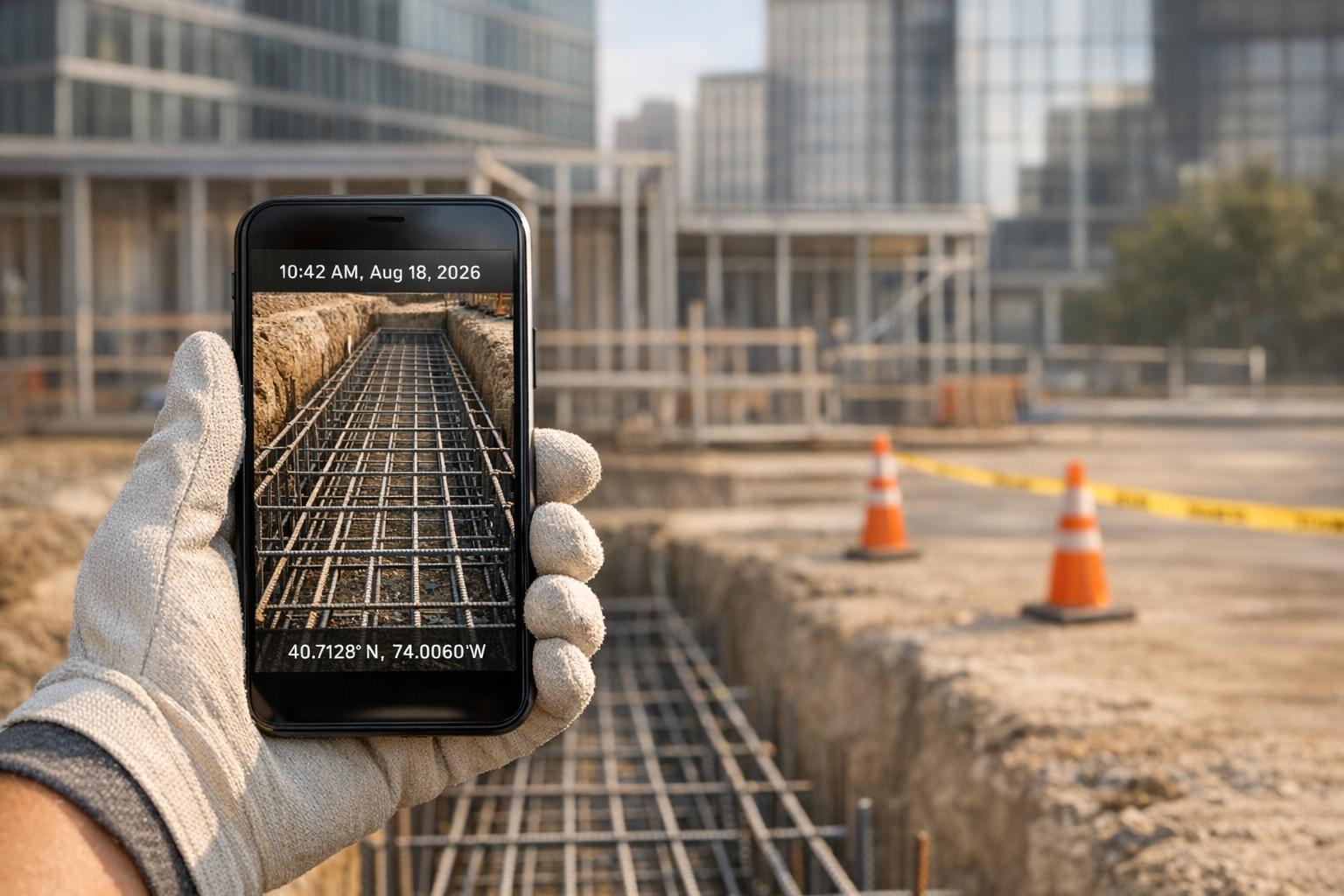
This is where field crews take photos or videos, which are automatically enriched with GPS coordinates, timestamps, project IDs, and user details. For example, a photo taken at 2:30 PM on October 15, 2025, would instantly include all this metadata, turning it into a reliable, traceable record. Apps like CrewCam make this process even more efficient by embedding GPS and time data directly into files. Teams can also add annotations, tags (e.g., "Daily Log" or "Punch List – Electrical"), and notes right on the photo before it leaves their device.
2. The cloud storage and organization layer
Once captured, photos are uploaded to secure cloud storage, where they’re organized into project-specific folders or categories based on the metadata and tags applied in the field. This eliminates the chaos of scattered photos across personal devices, emails, or text threads. Instead, every image becomes easy to find by searching for a project name, date, location, or tag. CrewCam, for instance, offers unlimited cloud storage that organizes photos by job, phase, or location, and enables real-time access. As soon as a photo syncs, project managers can view it on a desktop or mobile device.
3. The construction management layer
This is where the photos integrate into daily workflows like RFIs, punch lists, safety reports, and schedules. Properly tagged photos automatically appear in the corresponding sections. For example, a photo tagged "Daily Log – 10/15/2025" will show up in that day's log entry, while one tagged "Punch List – Room 205 – Electrical" links directly to the punch list for that room. CrewCam enhances this layer with features like live project feeds, which keep office teams updated on changing site conditions, and team collaboration tools that allow multiple users to contribute photos while maintaining organized records.
The beauty of this system is its automation. Field crews don’t need to manually upload photos or email them to the office, and project managers don’t have to download and attach images to reports. The metadata captured at the source - like project ID, tags, and location - ensures that every photo lands exactly where it should, saving time and reducing errors.
How the Connection Works
The technical backbone of this integration involves APIs, project identifiers, and user permissions, all working together to enable secure and accurate syncing.
APIs (Application Programming Interfaces) act as the bridge between photo apps and construction software, ensuring seamless data exchange. Once the device connects to the internet, the API uses project IDs to route photos to the correct project in the construction software. Each photo, complete with its GPS coordinates, timestamp, tags, and notes, gets placed in the appropriate section, such as a punch list or daily log. This eliminates manual uploads and ensures photos are always linked to the right tasks, improving accuracy and traceability.
Project IDs and folder structures play a crucial role in syncing. Both the photo app and construction software must use consistent naming conventions. For example, if your software organizes projects as "Project > Building > Level > Room", your photo app should mirror that structure. CrewCam supports this by allowing teams to organize photos by job, phase, or location (e.g., "Project A – Foundation – Week 1"). A photo tagged "QC – Concrete Pour – Floor 2" will automatically route to the quality control checklist for Floor 2, linked to the correct date and task.
User roles and permissions ensure that only authorized personnel can access, edit, or share photos, which is vital for security. CrewCam provides roles like "Admin", "Project Manager", "Foreman", and "Field Crew", each with specific access rights. For instance, a field crew member might only upload photos to their assigned projects, while a project manager has full access to review, annotate, and export photos. Aligning these roles with those in construction software prevents unauthorized changes and ensures compliance with company policies.
Cloud syncing keeps everything updated in near real-time. When a superintendent uploads a photo from the site, it appears almost instantly on the office team’s dashboard. CrewCam’s offline mode is particularly useful in areas with poor connectivity, like basements or remote sites. Field crews can capture photos, add tags and notes, and even complete checklists without an internet connection. Once back online, the app syncs everything to the cloud and construction software in the order the photos were taken, preserving all metadata like date, time, and location. This ensures no documentation is lost, and the software receives a complete, chronological record.
This streamlined process means that a foreman documenting a safety hazard at 9:15 AM can tag it "Safety – Tripping Hazard – Area B" and add a quick note. By 9:20 AM, the safety manager in the office can view the photo in the safety inspection module, complete with location, timestamp, and the foreman’s note. It’s an efficient, automated way to keep everyone informed and ensure accurate, auditable records.
Setting Up Photo Syncing
Photo syncing works best when systems are properly aligned before field teams start snapping pictures. For smaller contractors and teams, this process is easier to manage because there are fewer people and projects to coordinate. This allows for quicker testing, refining, and standardizing without the red tape often found in larger organizations.
To get started, focus on three key tasks: creating a unified project structure across platforms, assigning user permissions wisely, and preparing devices and workflows to handle jobsite challenges like poor connectivity. Skipping any of these steps can cause major headaches - photos might end up in the wrong project, critical evidence could be deleted, or offline images might never sync properly. Here’s a streamlined way to set things up.
Creating Consistent Project Structures
Your photo app and construction management software need to "speak the same language", and that language is your project structure. For example, if your construction platform organizes work as "Client – Project – Building – Floor – Area" but your photo app uses a simpler format like "Job Name – Date", things can quickly go off track, leading to misplaced or delayed photos.
Start by listing all active projects in your construction software, including their official names, IDs, cost codes, and phases. Use this list as your master reference. Then, establish a naming convention that’s simple enough for everyone to follow but detailed enough to avoid confusion. A format like "Client – Project – Building – Floor – Area" strikes a good balance. For instance, a residential remodel could be labeled "Smith – Kitchen Remodel – Main House – 1st Floor – Kitchen", while a commercial project might look like "ABC Corp – Office Build-Out – Suite 200 – Level 2 – Conference Room."
Once the structure is set, mirror it exactly in your photo app. In CrewCam, for example, you can create projects that match the names and IDs from your construction software. This prevents duplicate folders, misplaced photos, and confusion about where each image belongs.
Tags are another crucial piece of the puzzle. Define a set of tags that align with your workflows - like "daily-log", "RFI", "submittal", "punch-list", "safety", "inspection", or "change-order." These tags help photos land in the correct module within your construction software. CrewCam even supports project-based checklists to help enforce tagging consistency. For example, a "Pre-pour checklist" might include items like "Rebar placement", "Formwork inspection", and "Concrete truck arrival", each requiring at least one tagged photo. This setup minimizes the need for manual sorting later.
One common mistake is letting each crew create its own folder and naming system, which makes searching a nightmare and disrupts integration with daily logs or RFIs. To avoid this, enforce a company-wide structure using templates and checklists in tools like CrewCam. Test everything on a pilot project before rolling it out across all jobs.
Setting Up User Roles and Access
Not everyone on your team needs full access to photos. Overly broad permissions can lead to lost data or compliance issues. To avoid this, divide your team into three groups - field crews, supervisors, and office staff - and assign permissions based on their roles.
- Field crews should be able to capture and upload photos but not delete or bulk-edit past data. In CrewCam, for example, field users can be invited to specific projects with limited access for photo capture, tagging, and checklist completion.
- Supervisors and foremen need more control. They should be able to annotate photos, add comments, and adjust tags to ensure images are properly categorized before they’re added to official logs.
- Office staff and project managers manage the overall system. They handle integrations, folder organization, and external sharing, ensuring only approved photo sets are shared with clients, inspectors, or legal teams. Full access should be reserved for internal staff actively working on the project, while guest access - for subcontractors, clients, or consultants - should be limited to view-only or upload-only rights. This access should also expire once the project hits a specific milestone.
Consistency is key. Map permissions across systems carefully to avoid accidental deletions or misplaced photos. Test these roles with real users before fully rolling out the system.
Preparing for Offline Work
Once your project structures and user roles are in place, it’s time to prepare for field conditions. Jobsites often have spotty connectivity due to remote locations or structural interference. Without a plan for offline work, crews might stop documenting or risk losing unsynced photos.
Start by standardizing device requirements. Equip crews with modern smartphones that have plenty of storage (64–128 GB) and strong battery life. Provide jobsite-rated battery packs and encourage minimal background app usage to keep devices running smoothly. Using the photo app as the primary camera ensures images go directly into the project workspace, cutting down on duplicates and manual uploads. CrewCam stores all photos in the cloud, keeping local storage clear. Set guidelines on when to use high-resolution video versus still photos to manage file sizes.
CrewCam’s offline mode is designed for these challenges. It lets crews capture photos, add tags and notes, and complete checklists even without an internet connection. The app saves photos locally with details like project name, date, GPS location, and tags, syncing everything once the connection is restored. Before heading to remote areas, make sure users download the latest project list so they can keep working without interruptions.
Finally, train crews to double-check that each photo is assigned to the correct project and checklist while they’re still on-site - even when offline. Fixing misfiled images later is time-consuming and can disrupt workflows. Proper preparation ensures everything runs smoothly, no matter the conditions.
Common Uses for Photo Syncing on Construction Sites
A synced photo system offers a practical way to document project progress, spot quality concerns, and maintain safety records in real-time. Field teams can capture time-stamped, GPS-tagged images that verify completed work, highlight deficiencies, and create a visual safety log. This keeps everyone informed and ensures transparency across teams. Let’s dive into how synced photos enhance daily logs, quality control, and safety documentation.
Daily Logs and Progress Reports
Daily logs are the backbone of construction site documentation, and synced photos take them to the next level. By adding time-stamped, GPS-tagged images, these logs become more accurate and useful. A photo doesn’t just say, “concrete placement is in progress.” It shows the exact pour location, the size of the crew, the equipment in use, and even the weather conditions - all with a clear date and time.
Here’s why this matters: miscommunication and poor project data account for nearly half - 48% - of all rework in U.S. construction, costing an estimated $31.3 billion annually. Structured photo documentation can help tackle this costly issue head-on.
Tools like CrewCam allow foremen to upload progress photos instantly, giving project managers immediate visibility into what’s happening on-site. This real-time access helps identify potential delays early, enabling quick decisions about manpower, materials, or sequencing.
Another advantage? Automatic organization. Photos are sorted by project, date, and location, saving superintendents the hassle of digging through unorganized images. Need all the photos from a specific area or trade for a particular day? They’re just a few clicks away. This efficiency not only speeds up daily log creation but also ensures client requirements are met and billing stays accurate.
Even when connectivity is an issue, offline capture ensures no documentation is lost. The system syncs everything once connectivity is restored.
Quality Control and Punch Lists
Synced photos aren’t just for tracking progress - they’re also a game-changer for quality control. Punch lists, often a source of miscommunication, become far clearer when paired with annotated photos. For instance, instead of a vague note about a crack, an image can show the exact location with a note like, "Repair 6-inch crack above door frame, Level 2 East Hallway." This level of detail eliminates guesswork and ensures contractors know exactly what needs fixing.
CrewCam’s annotation tools make this process even easier. Quality teams can mark up photos, add arrows or notes, and link them to specific checklist items. Once the repair is completed, a new photo can be uploaded to confirm the work. Keeping the original annotated image alongside the updated one creates a clear audit trail, proving the issue was identified, communicated, and resolved.
This approach is especially helpful for complex issues involving multiple trades. Take, for example, a mechanical penetration that isn’t properly fire-stopped. An annotated photo can be shared with both the mechanical contractor and the fire protection contractor, ensuring everyone is aligned.
The checklist feature ensures no punch list item slips through the cracks. Each task is assigned an owner and a deadline, with progress tracked until completion. When it’s time for project closeout, compiling all punch list photos into a final report provides solid proof that everything was completed as required, protecting both the contractor and the owner.
Some platforms even allow teams to pin photos directly onto floor plans or BIM models. This makes it easier to locate and verify punch list items during walkthroughs, speeding up coordination and ensuring nothing is missed before substantial completion. All these workflows feed into centralized project records, maintaining a complete and accessible audit trail.
Safety Documentation and Incident Reports
Safety documentation is another area where synced photos shine. GPS- and time-stamped images create indisputable records, essential for compliance and resolving incidents. When a safety manager captures a photo of a hazard or incident, the metadata - date, time, and location - provides a reliable timeline. This is invaluable for investigations, workers’ compensation claims, and meeting regulatory requirements.
For example, if a guardrail is missing on a second-floor opening, a time-stamped photo documents when the hazard was identified. If an injury occurs later, the photo shows whether the issue was addressed promptly. This level of detail is far more reliable than relying on memory or conflicting accounts.
CrewCam automates this process, attaching timestamps and GPS data to every safety photo. These images can then be linked to incident reports or safety documentation, creating a comprehensive record. This integration helps protect against liability and ensures regulatory compliance.
Proactive safety measures are equally important. Many contractors include photo checks as part of daily or weekly safety walks, capturing images of PPE usage, housekeeping, signage, and equipment conditions. Over time, these photos build a record that demonstrates a company’s commitment to safety - an asset if claims arise later.
Analyzing GPS data from safety photos can also highlight recurring problem areas. For example, if hazards frequently occur in the same location, safety managers can target those areas with extra controls, training, or supervision. This shifts safety management from a reactive approach to a proactive one.
Sharing safety photos speeds up hazard resolution. When a superintendent uploads an image of a safety concern to the live project feed, the entire team - including the responsible trade, safety officer, and project manager - can see it immediately. This prompt communication often ensures the hazard is addressed the same day, rather than waiting for the next scheduled safety meeting.
For projects requiring third-party inspections or regulatory oversight, organized and searchable safety photo records simplify compliance. Instead of scrambling to find documentation during an OSHA inspection or insurance audit, teams can quickly filter photos by date, location, or tag. This ensures safety protocols are consistently documented, providing peace of mind for both contractors and project owners. All of this integrates seamlessly into centralized project management systems, ensuring thorough oversight and accountability.
sbb-itb-5f4c686
Maintaining and Improving Your Photo Sync Workflow
Getting your photo syncing system up and running is just the beginning. To keep things running smoothly, regular upkeep is crucial. It ensures accurate documentation and supports real-time decision-making on projects. Plus, staying on top of maintenance helps you catch and fix small issues before they turn into bigger problems.
Checking Sync Accuracy
One of the most important steps is making sure your photos sync correctly. Most cloud-based systems sync photos within 5–15 minutes after capture. Regularly checking this timeframe helps you spot any hiccups early. Every photo should end up in the correct project folder, complete with accurate metadata like timestamps, GPS coordinates, and location tags.
CrewCam’s desktop access makes this process easier. Project managers can review the live project feed from the office, comparing field uploads with office records without having to visit the site. This saves time and gives a clear, comprehensive view of all documentation activities across projects.
To stay consistent, set up a weekly or bi-weekly audit schedule based on your project’s size and the volume of photos. During these audits, pull up the live project feed and confirm that every photo captured in the field appears in the office system. Cross-check timestamps, GPS data, and tags to ensure everything is accurate. You can also use a simple checklist to streamline the process:
- Confirm all photos are present.
- Verify correct project folder assignments.
- Check timestamps and GPS data for accuracy.
- Review annotations and metadata for completeness.
Random sampling works well, too. For instance, you might review 10–15% of daily uploads to ensure they match punch lists, daily logs, or construction diaries. Ideally, your sync completion rate should be between 99–100%. Any discrepancies should be logged and addressed right away, as missing documentation can lead to compliance issues or disputes later on. CrewCam’s desktop tools can also generate detailed reports with photo metadata, annotations, and task records, which are essential for maintaining a solid audit trail.
If you uncover sync issues during these audits, the next step is troubleshooting.
Fixing Common Problems
Even the best systems can run into occasional problems. Some common issues include missing photos, incorrect project assignments, or delays caused by poor connectivity.
When photos don’t sync, start by checking the basics: internet connectivity and app permissions. Make sure the app has access to cloud storage and that your device is connected to a reliable network. If photos are syncing to the wrong project, review project IDs and naming conventions to ensure consistency across devices. Also, double-check that user roles and access levels are correctly assigned.
For areas with poor connectivity, CrewCam’s offline mode allows you to capture photos and sync them later when the connection is restored. If delays persist, consider setting up designated upload zones with strong WiFi or cellular coverage, where crews can batch-upload photos during breaks.
Incorrect timestamps or GPS tags often point to device settings. Ensure the date, time, and location services on all devices are accurate before starting a project. If issues persist, try clearing the app cache, reinstalling the app, or updating to the latest software version.
CrewCam’s annotation features can also help. If a photo has syncing issues, you can mark it up with notes about what went wrong. This creates a record for technical support and helps you identify recurring patterns. Keep a log of discrepancies, noting the photo ID, expected vs. actual location, and resolution date. This can help you determine whether the problem is isolated or part of a larger system issue.
Once you’ve resolved syncing problems, use the data to refine your workflow.
Improving Workflows Over Time
A great photo sync system isn’t static - it evolves with your needs. By analyzing sync performance data on a monthly basis, you can spot trends and make adjustments to improve efficiency.
For example, if syncing slows down during peak hours when everyone is uploading at once, consider staggering uploads to spread out the traffic. Batch uploads during off-peak hours can also help. If certain project locations consistently experience connectivity issues, rely more on offline mode or adjust upload schedules to times when the connection is stronger.
Take a closer look at which photo tags and checklists are used most often and which are rarely applied. Streamlining your CrewCam setup by removing unnecessary tags or refining checklists can make workflows more efficient. If specific team members frequently upload photos with incomplete data or incorrect assignments, provide training or adjust their permissions to improve accuracy.
Measure progress by comparing sync rates, resolution times, and annotation quality before and after making changes. Track time saved in communication, decision-making, and issue resolution. You can also compare similar projects to see how improved photo practices reduce errors or speed up approvals. This data can justify further investment in photo documentation tools or additional user licenses.
At the end of each project, create a lessons-learned document. Include details like the best photo angles for quality control, ideal times for daily photo captures, and the most effective annotation practices. If certain checklist items consistently highlight problems, make them a priority for future projects.
Also, measure outcomes like reduced rework, faster approvals, and fewer disputes. For example, if one team finds that specific photo techniques at key milestones prevent costly errors, roll out this practice across all teams.
Periodically adjust your project structure, user roles, and checklist templates based on these insights. Real-time collaboration features can also enhance reliability. When photos sync with annotations and comments, field and office teams can address issues immediately, rather than waiting for end-of-day reports. Assign team members to review uploads within a set timeframe - two hours for urgent issues usually works well.
Use photo annotations wisely. Add comments only when action is required to avoid overwhelming your team. Review communication patterns monthly to identify bottlenecks and adjust checklists or tags to capture essential information upfront.
Finally, establish a retention policy for photo storage, typically three to seven years depending on the project and local regulations. A backup system separate from your primary cloud storage can protect against data loss. Over time, these small but consistent improvements will add up, saving time and reducing errors across your operations, while ensuring smooth construction management.
Conclusion
Integrating photo apps with construction software transforms how teams handle documentation, communication, and risk management. Forget the hassle of scattered images and relying on memory - this approach centralizes everything, linking each photo to the right project and task. The move from manual photo management to automated syncing doesn’t just save time; it slashes retrieval times and reduces administrative tasks by 30–50% within the first month.
The advantages are clear: Improved organization gives you instant proof of progress for clients or inspectors. Enhanced accountability comes with GPS and time-stamped photos, protecting you from disputes and liability claims. Streamlined communication ensures everyone - from field crews to office staff and clients - stays on the same page with real-time visual updates, cutting down on miscommunication and costly rework.
CrewCam is built to support these workflows, offering tools that simplify photo documentation and keep your team perfectly synced. With desktop access and shareable galleries, you can connect the office and the field effortlessly, providing quick updates to clients and subcontractors without needing full access to your construction management platform.
To maximize these benefits, follow a few key steps: establish consistent project structures, assign clear user roles, and plan for offline work scenarios. Use photo documentation for essential tasks like daily logs, quality control, and safety records. Most importantly, maintain your system regularly to ensure it runs smoothly and continues to evolve with your needs.
The effort you put into consistent photo capture and organization pays off when it matters most - resolving disputes in days instead of months, preventing expensive rework with clear records, and proving compliance when questions arise. Think of your photo documentation system as insurance for your projects, your team, and your reputation. It’s a critical tool for achieving long-term success and keeping operations running efficiently.
FAQs
How can syncing photo apps with construction software enhance project documentation and team communication?
Syncing photo apps with construction software takes project documentation to the next level by providing GPS-tagged and time-stamped photos and videos. This ensures records are precise and trustworthy. Plus, with real-time collaboration tools like on-photo annotations, comments, and updates, teams can communicate more effectively, keeping everyone on the same page.
Features like checklists and sharable photo galleries further simplify workflows. They help teams stay organized, minimize confusion, and reduce the chances of overlooked tasks or miscommunication. These tools make managing projects smoother and more efficient.
How can I ensure my photos sync properly when working offline in areas with poor connectivity?
CrewCam’s offline mode makes sure your jobsite photos and videos are saved and synced effortlessly, even when you're stuck with weak or no internet connection. Just take your pictures or record videos as you normally would, and they’ll automatically upload to the cloud once you're back in an area with a stable connection.
To get the best experience, double-check that your device has enough storage to temporarily hold your files. Also, keep the app open until everything has synced properly. This way, your visual documentation stays safe and is ready for your team to access as soon as you're online again.
How do GPS coordinates and timestamps in photos improve accountability and prevent disputes on construction projects?
Photos embedded with GPS coordinates and timestamps serve as a dependable way to track jobsite activities. They precisely record the location, date, and time of each photo, ensuring clear and transparent documentation for everyone involved.
This level of detail can be a game-changer when resolving disputes. It provides solid evidence of progress, completed tasks, or site conditions at specific points in time, helping to minimize confusion and reduce legal risks. Plus, accurate records make workflows smoother and boost team accountability.
Related Blog Posts


See CrewCam in action
Start your free trial now by clicking the button below


Wanna chat or demo?
Questions? Concerns? Requests? Talk to a real human

Watch a CrewCam demo now 😎
Short on time, busy, got jobs to do? See how CrewCam works now!