related blog
%20(3).svg)
13
CompanyCam Alternatives
Compare jobsite photo documentation tools—features, pricing, storage, annotations, and collaboration to find a simpler, cheaper alternative to CompanyCam.
CompanyCam is a popular tool for jobsite photo documentation, but its complex features, product solution, and pricing tiers might not suit everyone. If you're looking for simpler, cost-effective alternatives, here are some standout options:
- CrewCam: Starts at $39/month, offers unlimited cloud storage, GPS-stamped photos, annotations, checklists, and real-time collaboration. Ideal for teams of all sizes.
- Manifold: Focuses on organizing annotated, GPS-tagged photos into a timeline for smaller projects. Pricing not publicly listed.
- WorkPhotos: Budget-friendly and great for basic photo organization, but lacks advanced collaboration or annotation tools.
- Device Camera Roll: Free, but inefficient for professional use due to limited organization, lack of timestamps, and no collaboration features.
Quick Comparison Table:
| Feature | CrewCam | Manifold | WorkPhotos | Device Camera Roll |
|---|---|---|---|---|
| Pricing | $39–$224/month | Not disclosed | Affordable | Free |
| Storage | Unlimited | Cloud (limits unclear) | Not specified | Limited to device space |
| Collaboration | Real-time updates | Photo timeline | Basic access | Manual sharing |
| Annotations | Advanced tools | Supported | Not available | Basic editing only |
| Checklists | Built-in | Not mentioned | Not available | None |
| Platforms | iOS, Android, Desktop | iOS, Android (assumed) | Mobile platforms (assumed) | iOS, Android, Tablets |
For contractors, CrewCam stands out with its robust features, simplicity, and transparent pricing, making it a strong alternative to CompanyCam. Whether you're a solo contractor or managing a larger team, there's a solution tailored to your needs.
1. CrewCam

CrewCam is designed with contractors in mind, offering a streamlined way to document jobsite photos efficiently. It focuses on what matters most: taking, organizing, and sharing photos quickly and effectively with your team.
Every photo and video is automatically stamped with the date, time, and GPS location. This ensures accurate records for tracking progress, addressing issues, or even protecting against liability claims.
Here’s a closer look at CrewCam’s standout features and pricing.
Price
CrewCam offers several pricing tiers to fit different team sizes:
- Basic Plan: $39/month, includes unlimited storage and projects for up to 2 team members.
- Standard Plan: $89/month, supports up to 5 members.
- Premium Plan: $224/month, ideal for teams of up to 15 members.
- Enterprise Pricing: Tailored for larger teams, with custom features and dedicated support.
The Basic plan is perfect for solo contractors or smaller crews.
Storage
Every plan includes unlimited cloud storage. Upload as many photos and videos as you need without worrying about hitting a limit. This ensures your documentation is safe, even if your device gets lost or damaged. Plus, you can access your entire photo library from any device, anytime.
Collaboration Features
CrewCam’s live project feed keeps your team connected in real time. As soon as a crew member uploads a photo, everyone with access can view it instantly - making updates seamless.
You can invite team members to specific projects, control visibility, and even share project galleries with clients or subcontractors through a simple link. This makes collaboration smooth and hassle-free.
Annotations
Need to call out a specific detail? CrewCam’s annotation tools let you add drawings, text, and arrows directly to photos. This feature makes it easy to highlight issues or clarify instructions, cutting down on unnecessary back-and-forth communication.
Checklists
Stay organized with CrewCam’s built-in checklists. Create task lists, track progress, and verify completed work - all within the app. Photo-based checklists also help ensure tasks meet quality standards, so nothing gets overlooked.
Platforms
CrewCam works on both iOS and Android devices, making it accessible for your entire team, no matter their device. There’s also a desktop login for reviewing and sharing projects from the office or on the go.
Even in areas with poor cell service, CrewCam’s enhanced offline mode keeps you working. Photos will sync automatically once you’re back online.
Support
All plans include access to a knowledge base with setup guides and helpful tips. For Premium and Enterprise users, CrewCam provides a dedicated representative and personalized implementation support, ensuring your team gets up to speed quickly.
The support is tailored to contractors, offering practical, no-nonsense advice that fits your workflow.
2. Manifold
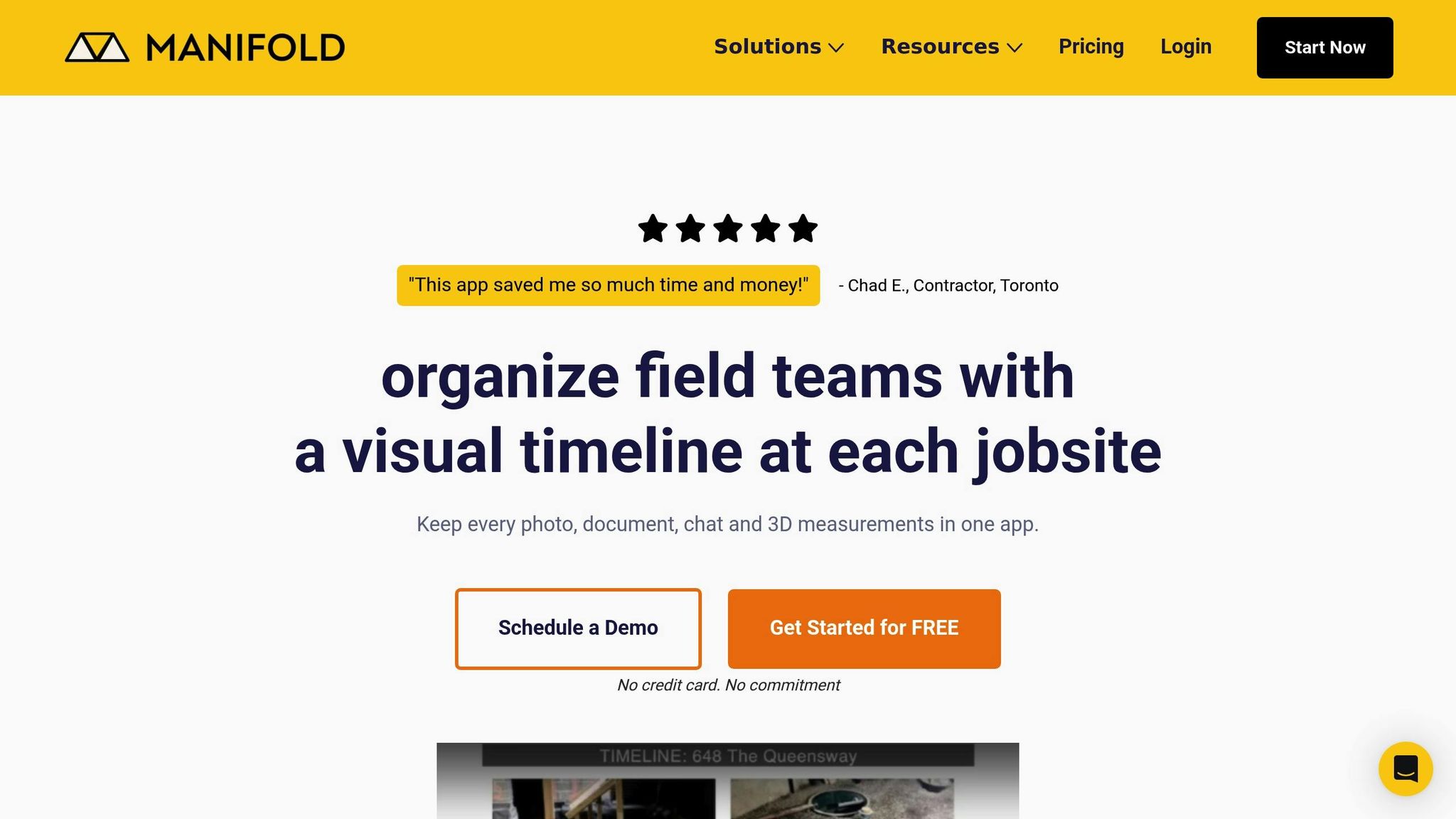
Manifold is a jobsite photo documentation tool designed to streamline visual collaboration. It organizes GPS-tagged and annotated photos into a chronological Photo Timeline, making it easy to see exactly when and where each image was taken. This timeline acts as a central hub, simplifying communication and coordination through visual records.
Manifold’s collaborative features are particularly suited for smaller projects or teams with straightforward, real-time documentation needs. As one construction professional shared:
For smaller projects or when we need to present our work visually to stakeholders, Manifold is unmatched.
The ability to add annotations further enhances the professional quality of presentations, making it a practical choice for showcasing progress or addressing stakeholder concerns.
Up next, let’s take a look at another tool tailored for niche documentation requirements.
3. WorkPhotos

WorkPhotos simplifies jobsite documentation by focusing solely on photo management. Forget about dashboards or project modules - this tool is all about storing and organizing your photos. Its straightforward design makes it a practical choice for small to mid-sized teams seeking an affordable, easy-to-use solution.
Price
WorkPhotos is budget-friendly, especially when compared to enterprise-level platforms. For contractors already relying on separate tools for project management, this cost-effective approach can be a smart financial decision.
Storage
The platform excels at keeping jobsite photos organized and easy to access, but it doesn’t share much information about storage limits or capacity. This lack of clarity might be something to consider if you handle a high volume of images.
Collaboration Features
WorkPhotos doesn’t shine when it comes to collaboration. If your workflow requires features like real-time communication, shared annotations, or integrating photos into task management, you’ll likely need additional tools to fill those gaps.
Annotations and Checklists
While it’s great for organizing images, WorkPhotos doesn’t support advanced annotations or built-in checklists. If you’re looking for more functionality, your device’s camera roll might already do the trick for simple photo storage.
Platforms
WorkPhotos is designed to be user-friendly across devices. However, its minimalistic approach may leave larger or more complex projects needing more robust features.
Support
This platform is well-suited for small and mid-sized teams with straightforward needs. But if you’re managing multiple, intricate projects, its limited capabilities might fall short.
WorkPhotos is a solid option if all you need is a tool for photo storage and organization. That said, if you’re after a comprehensive solution that ties photos to checklists, team collaboration, and project workflows, its narrow focus could be a drawback.
Up next, consider how your device’s built-in options stack up.
4. Device Camera Roll
Your phone's camera roll is always with you - no fees, no setup, and it works offline. For many contractors, it's the go-to option for tracking jobsite progress. But while it may seem convenient, relying on your phone's built-in camera for project documentation comes with serious drawbacks. These issues can lead to wasted time, lost money, and unnecessary headaches. Let’s break down the key challenges.
Price
At first glance, using your phone’s camera roll appears to be a budget-friendly choice. There are no subscription fees or costs per user. However, the hidden expenses come in the form of inefficiencies - like time lost searching for photos or correcting billing errors.
Storage
Phone storage fills up fast. Whether your device has 64GB, 128GB, or even 256GB, construction photos can quickly consume that space - especially if you're juggling multiple projects. Once storage runs out, you're left with two options: delete old files or pay for additional storage.
Another major issue? Lack of organization. Jobsite photos mix with personal pictures, screenshots, and random memes, turning your camera roll into a chaotic mess. Finding that one critical photo from weeks ago often means scrolling endlessly through unrelated images. This disorganization only complicates collaboration and record-keeping.
Collaboration Features
Your camera roll isn’t designed for teamwork. Sharing photos typically involves sending individual texts, group messages, or emails. As Micke Paqvalén from buildbite.com explains:
"You're on site trying to prove work got done, but photos and documentation are buried in someone's phone, lost in a group chat, or mislabeled in a shared drive. Sound familiar? Here's what this costs you: customer complaints and unbilled hours that eat into your profit margin."
When photos are scattered across different devices, your office team loses visibility. This lack of centralized access makes coordination a nightmare.
Annotations
Sure, your phone’s photo editor lets you crop, adjust brightness, or add basic text. But when it comes to construction documentation, these tools fall short. There’s no easy way to add detailed notes, mark up measurements, or highlight problem areas - and any edits you make are permanent. Want to update annotations later? You’ll need to save a new version, adding yet another layer of clutter.
Checklists
Your camera roll doesn’t come with project management features like checklists or task tracking. Without a way to link photos to specific tasks, verifying that all punch list items are completed becomes a manual, error-prone process. This can lead to missed details and delays.
Platforms
While your camera roll works across devices - whether it’s an iPhone, Android, or tablet - that’s about where its versatility ends. Without built-in timestamps, clients may question when work was done. As buildbite.com notes:
"Without timestamped photos, clients question what was actually done."
Additionally, since photos aren’t automatically organized by project, documentation becomes disorganized. This can lead to miscommunication, errors, and delays in payments or change orders.
Support
If you accidentally delete an image or your phone gets lost, stolen, or damaged, your project history could disappear unless you’ve manually backed it up. And unlike professional tools, there’s no dedicated support to help you recover lost files or troubleshoot issues.
While your device’s camera roll may work for quick snapshots, it’s not built for professional construction needs. The time spent searching for photos, resolving miscommunications, and handling disorganized documentation can cost your business far more as it grows.
sbb-itb-5f4c686
Feature Comparison Table
Here’s a closer look at the features and trade-offs of popular jobsite photo documentation tools for contractors:
| Feature | CrewCam | Manifold | WorkPhotos | Device Camera Roll |
|---|---|---|---|---|
| Pricing | Basic: $39/month (up to 2 users) Standard: $89/month (up to 5 users) Premium: $224/month (up to 15 users) |
Not publicly listed | Budget-friendly plans for small to mid-sized teams | Free (but inefficiencies can increase hidden costs) |
| Storage | Unlimited cloud storage | Cloud storage (limits unspecified) | Secure cloud uploads | Limited to device storage capacity |
| Collaboration | Team access, live project feed, real-time updates, and seamless onboarding | GPS-tagged photo timeline with progress tracking | Team access with photos sorted by project and date | Manual sharing via texts, emails, or group chats |
| Annotations | On-photo drawings, text, and comments | Annotated photo support | Not specified | Basic photo editing with permanent changes; lacks markup |
| Checklists | Photo checklists for tasks and project verification | Not mentioned | Not mentioned | None |
| Platforms | iOS, Android, and desktop login | iOS and Android (implied) | Mobile platforms (implied) | iOS, Android, and tablets - but lacks project organization |
| Support | Dedicated rep (Premium/Enterprise), knowledge base, and implementation help | Not specified | Not specified | No dedicated support |
| Timestamps | GPS and time-stamped photos/videos | GPS-tagged photos | Date/time stamps (implied) | No automatic timestamps |
CrewCam shines with its unlimited storage, built-in checklists, and tools for seamless team collaboration. Manifold focuses on progress tracking and visual presentations, making it a solid choice for tracking jobsite progress. WorkPhotos appeals to smaller teams with its affordable photo organization features. Meanwhile, the device camera roll is free but lacks the functionality needed for professional-grade documentation.
Here’s the catch: without centralized access and automatic timestamps, relying on scattered tools like a camera roll can lead to inefficiencies. Important documentation often gets lost or overlooked, costing contractors money when work doesn’t make it into invoices. For those juggling multiple crews and projects, these gaps can result in missed revenue and communication breakdowns.
Up next, we’ll dive into how CrewCam simplifies workflows, especially when compared to CompanyCam.
CrewCam vs CompanyCam: Key Differences
For contractors looking for a straightforward and efficient way to manage project documentation, CrewCam brings some standout perks to the table. With features like instant project feeds and offline capabilities, here’s what makes it shine compared to CompanyCam.
Streamlined Workflow
- CrewCam keeps things simple with a user-friendly interface designed for quick photo capture and organization. Snap a photo, tag it to a project, and add annotations - all in just a few taps.
Clear, Upfront Pricing
- No surprises here. CrewCam offers pricing that’s easy to understand, with no hidden fees or gated features.
Fast and Reliable Performance
- Whether you're in a low-signal area or on the go, CrewCam launches quickly and reliably uploads photos without delays.
Easy Team Onboarding
- The intuitive design means new users can get up to speed fast, reducing the need for lengthy training sessions.
Unlimited Storage for Growth
- With unlimited cloud storage, CrewCam adapts to your growing project library, making it a scalable solution for expanding teams.
CrewCam’s focus on simplicity, transparency, and speed makes it a great fit for contractors who need hassle-free photo documentation that works as hard as they do.
Which Tool Is Best for Your Needs?
Let’s break down how to choose the right tool for your contracting needs based on team size, budget, and specific workflows.
Solo Contractors and Small Crews (1-5 people)
If you’re working solo or with a small team, CrewCam’s tiered plans are a great fit. They include unlimited storage, timestamped photos, and organized project documentation - features that help you stay on top of your work without paying for extras you don’t need. It’s an efficient way to keep jobsite photos well-organized without stretching your budget.
Mid-Sized Teams (5-15 people)
Managing multiple active projects with a mid-sized team? CrewCam’s higher-tier plans offer added support, including a dedicated representative to assist with onboarding. This can be a game-changer when you’re juggling several crews across different jobsites. Real-time updates and smooth implementation help avoid downtime and keep everything running seamlessly.
Large Operations (15+ people)
For larger teams, CrewCam’s Enterprise plan delivers custom features and pricing tailored to your needs. Whether you’re a general contractor managing multiple trades, a commercial builder handling compliance requirements, or a service company with a dispersed field team, this plan adapts to your workflow. It’s built to handle the complexities of large-scale operations.
Economic Minded
While using your phone’s camera roll may seem like a free option, it often leads to inefficiencies. Without timestamps or proper organization, you’ll likely waste valuable time searching for photos or piecing together timelines. Most contractors quickly outgrow this approach once they see how much smoother a tool like CrewCam makes their workflow.
Specialty Contractors
For contractors in specialized fields - like restoration companies documenting insurance claims or roofing contractors tracking storm damage - CrewCam’s annotation tools and checklists can simplify your process. Features like drawing directly on photos and creating task-specific lists help build systems that are easy for your team to follow, even for new hires.
Remote Jobsites
If you’re working in areas with limited connectivity, CrewCam’s offline mode is a standout feature. It lets you capture and store photos locally, syncing them automatically once you’re back online. This ensures you don’t lose critical documentation, unlike tools that rely on constant connectivity.
CrewCam simplifies documentation and saves time with its intuitive features and quick onboarding. Whether you’re managing a small crew or a large operation, it’s a practical choice for contractors who need reliable tools to stay organized and efficient.
Conclusion
Choosing the right photo documentation tool for your construction projects doesn’t have to be overwhelming. CrewCam stands out as a top choice for contractors, offering a solution tailored specifically for the construction industry. Every feature is designed with simplicity and efficiency in mind, making it an ideal fit for teams of all sizes.
With CrewCam, you get transparent pricing, dependable features, and an easy setup process. There are no user minimums or rigid pricing tiers to worry about. Whether you’re managing a small two-person team or overseeing a crew of 15+ spread across various sites, CrewCam scales effortlessly to meet your needs.
The platform’s user-friendly design ensures your team can hit the ground running. From GPS and time-stamped photos to unlimited storage, live updates, annotations, and checklists, all the tools you need to stay organized are built right in. These features work together seamlessly, ensuring your documentation is always accessible and well-structured.
CrewCam also addresses common on-site challenges. Spotty cell service? No problem - the offline mode lets you capture and store photos locally, syncing them automatically once you’re back online. Need to share updates with clients or subcontractors? The sharable photo galleries make it easy, with no need for additional apps or accounts.
Ready to simplify your jobsite documentation? Start a free trial of CrewCam today - no credit card required, no complicated setup. Just straightforward tools designed to work the way you do. See the difference CrewCam can make for your team. Try it now!
FAQs
Why is CrewCam better than using your phone’s camera roll for jobsite documentation?
CrewCam provides automatic timestamps and GPS tagging for every photo, giving you precise and well-organized jobsite documentation. Instead of sifting through your phone’s camera roll, CrewCam creates project-specific folders, making it simple to keep everything in order. Plus, with real-time collaboration, your entire team can stay aligned and up-to-date. These tools streamline progress tracking and ensure your projects are thoroughly documented.
How does CrewCam protect your data and stay accessible in areas with poor or no internet connection?
CrewCam is built with a focus on data security and accessibility, making it a reliable tool for contractors working even in remote areas with spotty or no internet. Thanks to its offline mode, your team can still capture and organize jobsite photos without any disruptions. When connectivity is restored, the app automatically syncs all data, ensuring your records stay current and protected. With CrewCam, your workflow stays on track no matter where the job happens.
What should contractors look for when comparing CrewCam to other jobsite photo documentation tools like Manifold or WorkPhotos?
When comparing CrewCam to other photo documentation tools, contractors should weigh factors like ease of use, cost, and workflow efficiency. CrewCam shines with its straightforward setup, live project feeds, annotation capabilities, and unlimited storage - making it a practical choice for simplifying jobsite documentation.
It's also important to think about how well the tool fits your team's workflow. Features like checklists, seamless team collaboration, and quick onboarding can help save time and minimize headaches. While the best option ultimately depends on your specific needs, CrewCam strikes a balance between being budget-friendly and offering the functionality contractors require.
Related Blog Posts



See CrewCam in action
Start your free trial now by clicking the button below


Wanna chat or demo?
Questions? Concerns? Requests? Talk to a real human

Watch a CrewCam demo now 😎
Short on time, busy, got jobs to do? See how CrewCam works now!